Afton Tickets Equipment Training
Mobile Box Office Tutorial.

Make sure that you unbox ALL equipment, plug it in, and turn it one well in advance to your event. It is also important that you make sure everything is up to date.
In most cases the phones will let you know that there is an update. Make sure to approve the update and let it take place.
To print out this tutorial CLICK HERE.
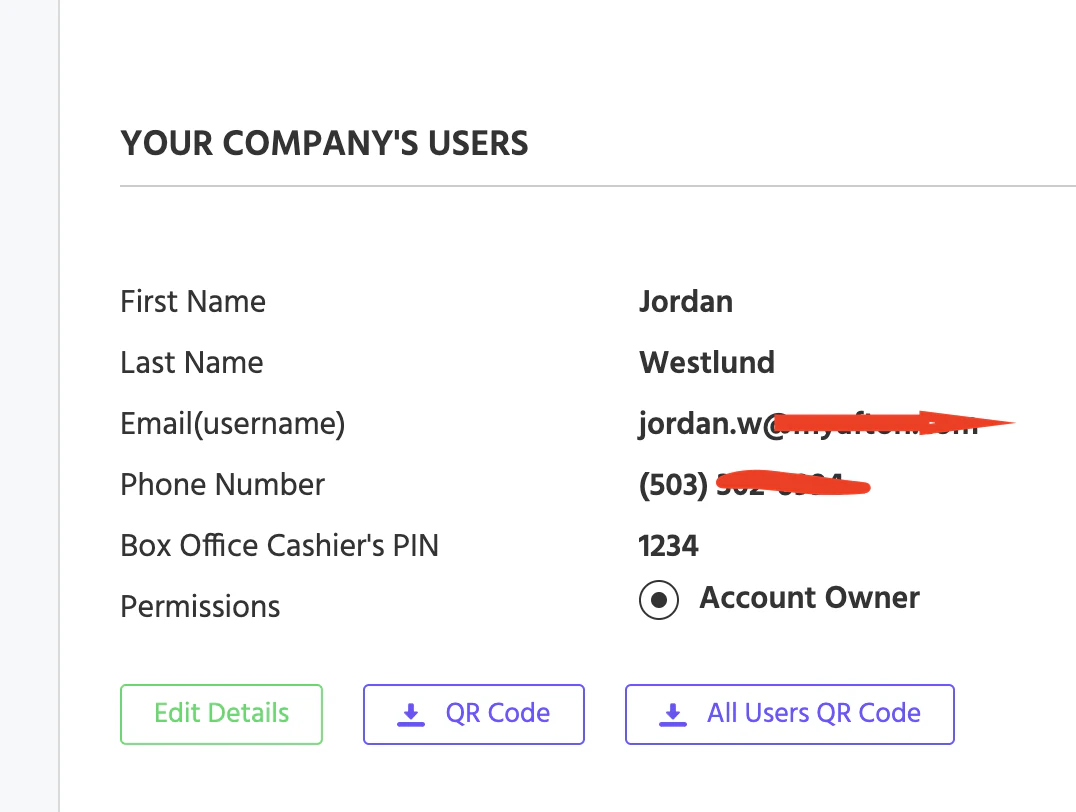
Finding Your Pin Number
In order to login to the app you will need three things. Your username name (which is usually your email address), your password (whatever you set that as), and the pin (which is created automatically when your login/account is created.
Occasionally your account manager will create a general login for you that will make it easier for you to share with your onsite team instead of using your personal login for the equipment.
-Login to your account.
-Click your name in the top right corner and click 'Account Info' in the drop down'
-Scroll down to 'Your Company User's' and it will list all of this information.
Logging In:
When you unlock the phone (by swiping up) the “Event Staff” app will automatically open.
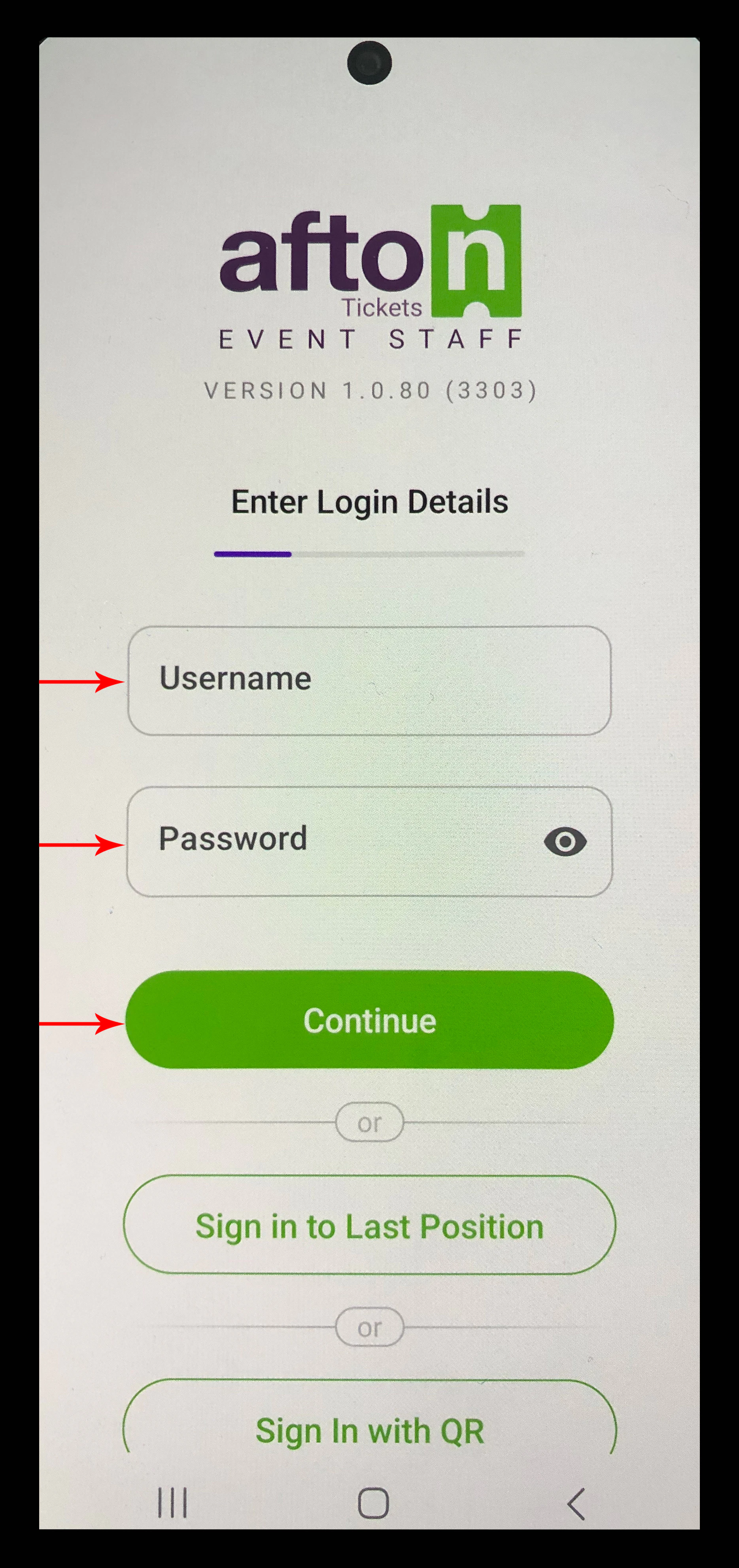
Login with your Username and Password (This is found in your HQ portal by clicking the arrow in the top right of the screening and going to 'staff'):
a. Username: ______b. Password: ______
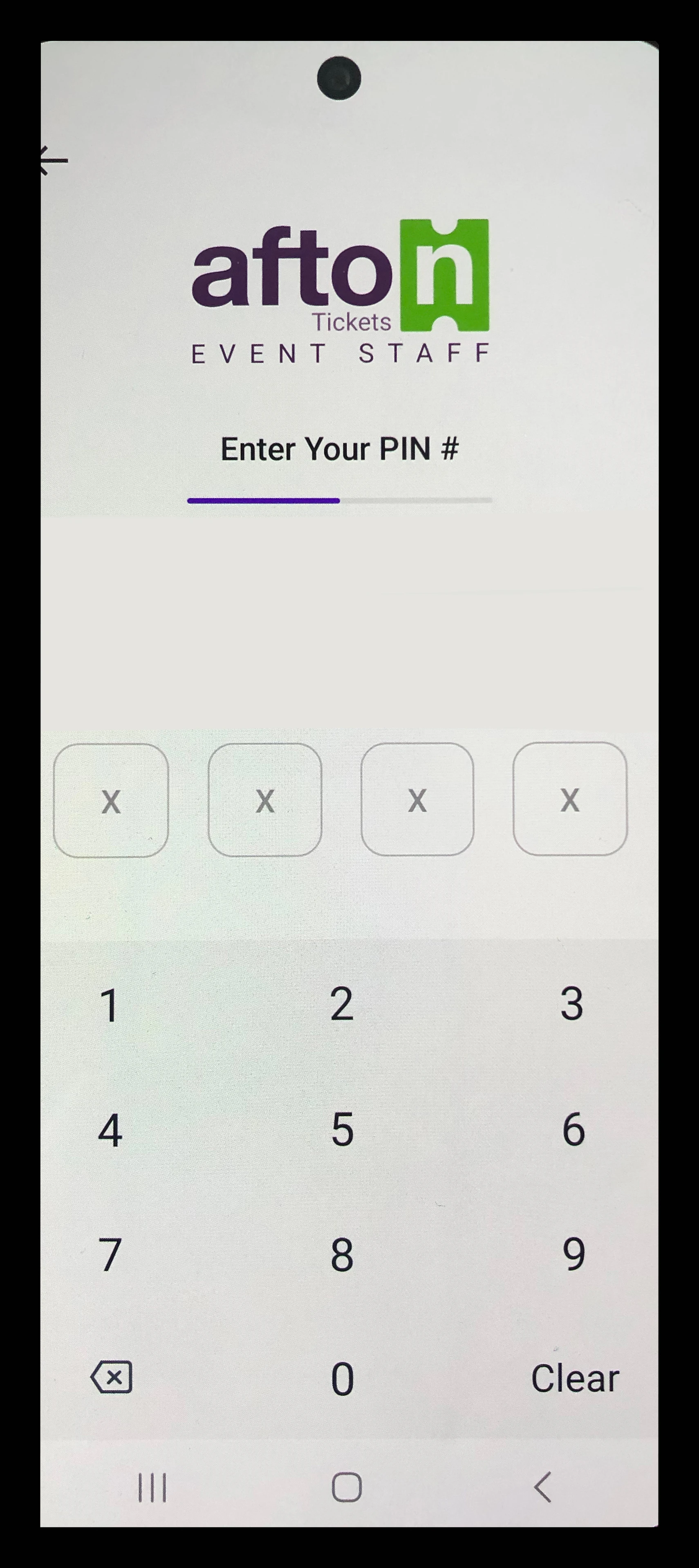
c. Enter your 4 digit pin: ____
Select the correct Location of the event (Found in the 'Basic Info' section of the event). If you do not see any locations or the location that you are trying to access then you need to give your user access to that location. Login to HQ and use the 'Box Office' tab to add any users to that location.
Select the APPROPRIATE position (In some cases there will just be one position and this section will be skipped)
Enter in Starting Till Amount (if you are starting with a cash till). Select
'Continue with Current Till' if you do not have a till.
*Note: If you ever get logged out due to inactivity you can simply click 'Sign into last position' and it will only require you to use your 4 digit pin to get logged in.
Connecting The Card Reader
You will need to unlock the phone and then the Event Staff should automatically be brought up. Login with the credentials that you find in your HQ account.
Note* you can find this information by logging in, clicking the gear icon in the top right of your account, then clicking my info and scrolling to the bottom of the page.
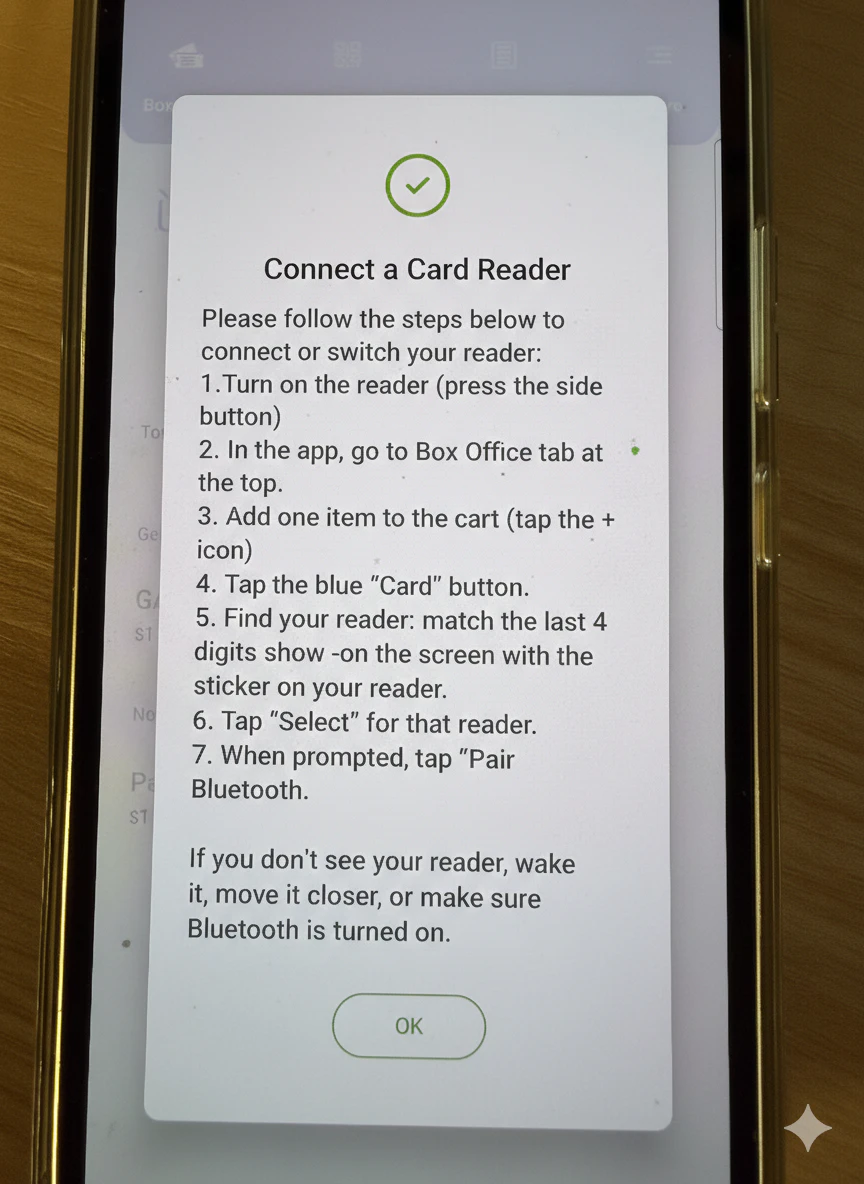
As of 2026 you can now find instructions in the more menu of the app:
Type in your Username and Password then click continue. Then type in your pin number.
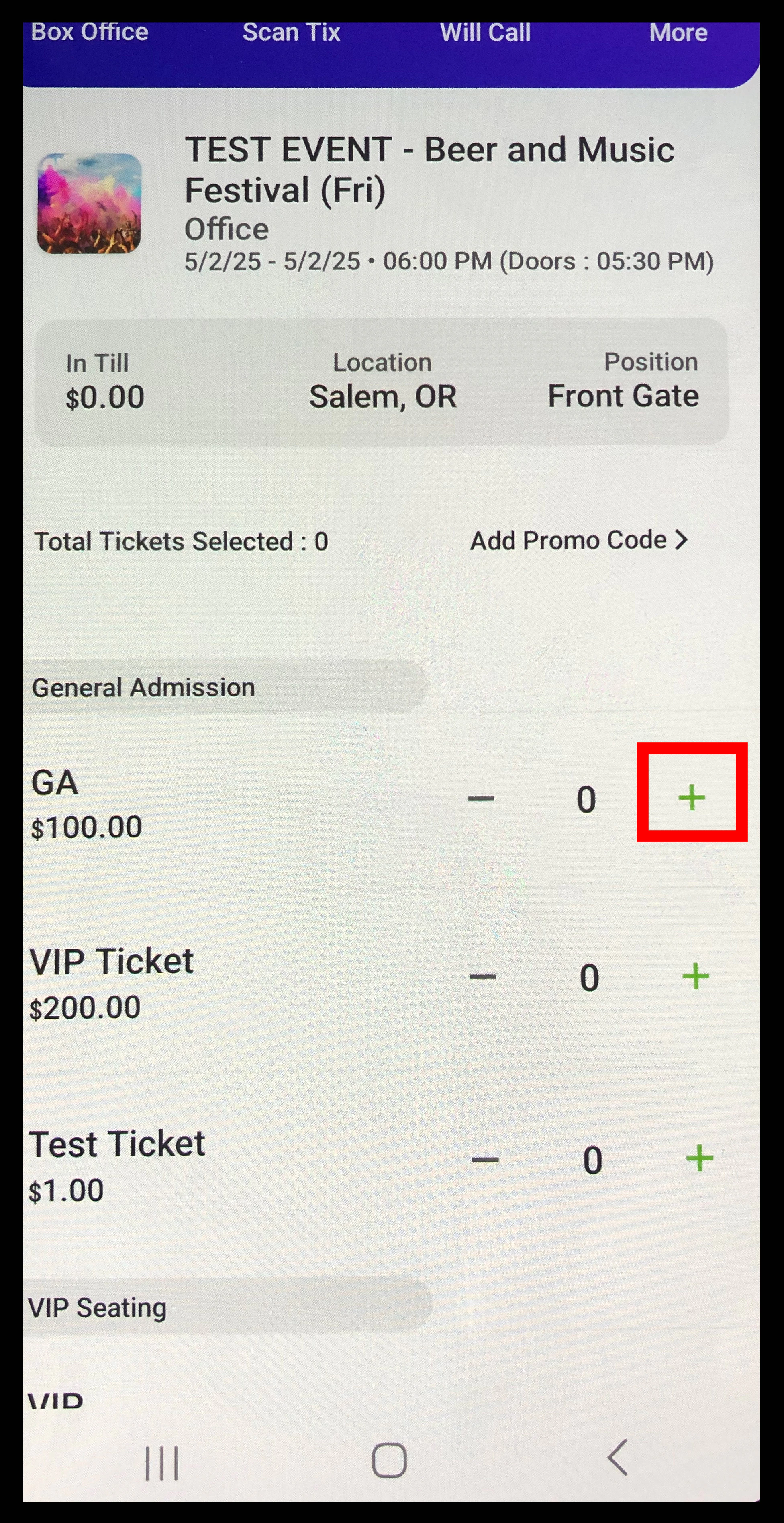
Next you should be brought to the main section of our app and should see your for sale items for your event. Just click the + button next to any item which will add it to your cart.
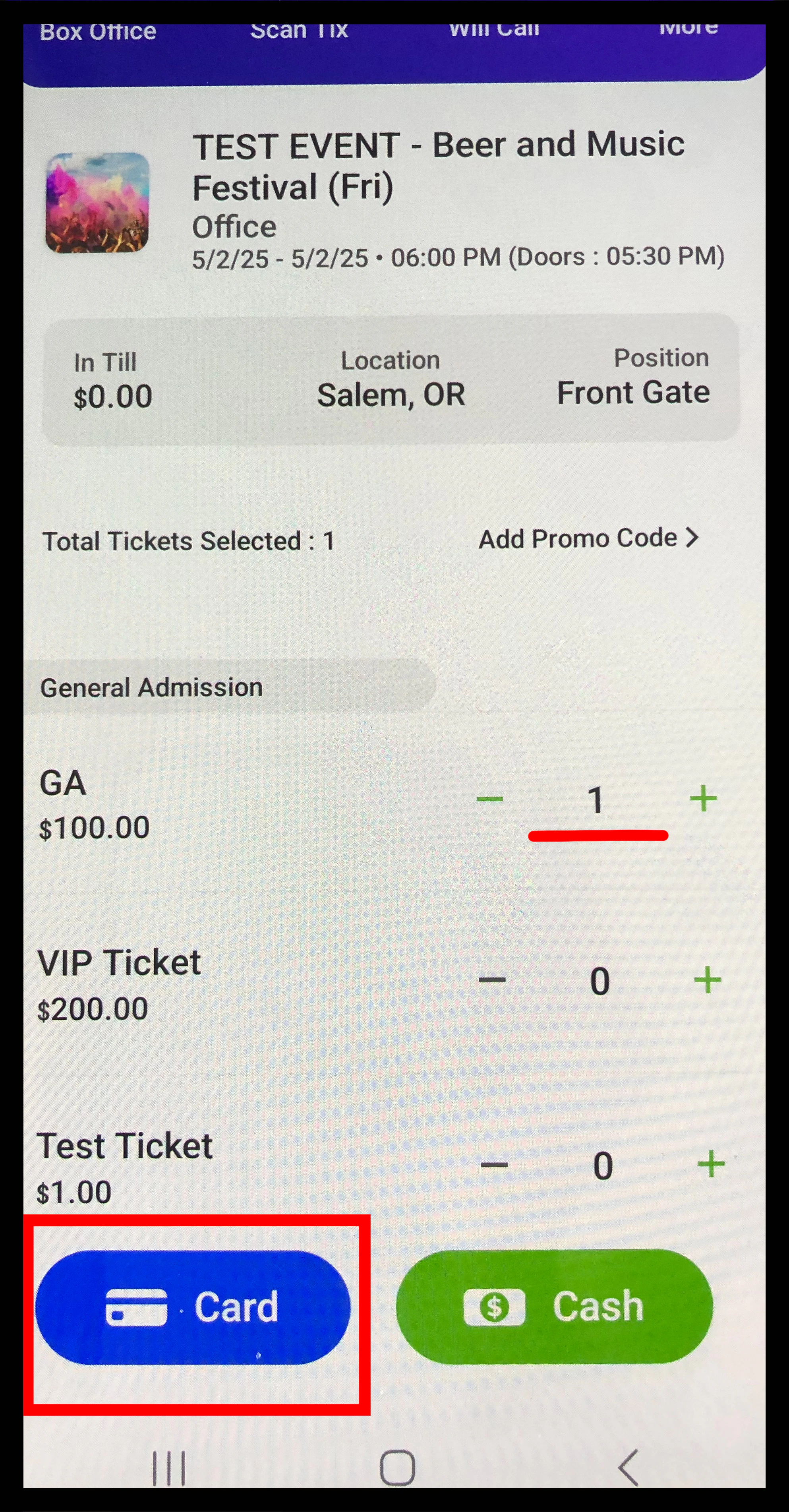
Then go ahead and click on the 'Card' button.
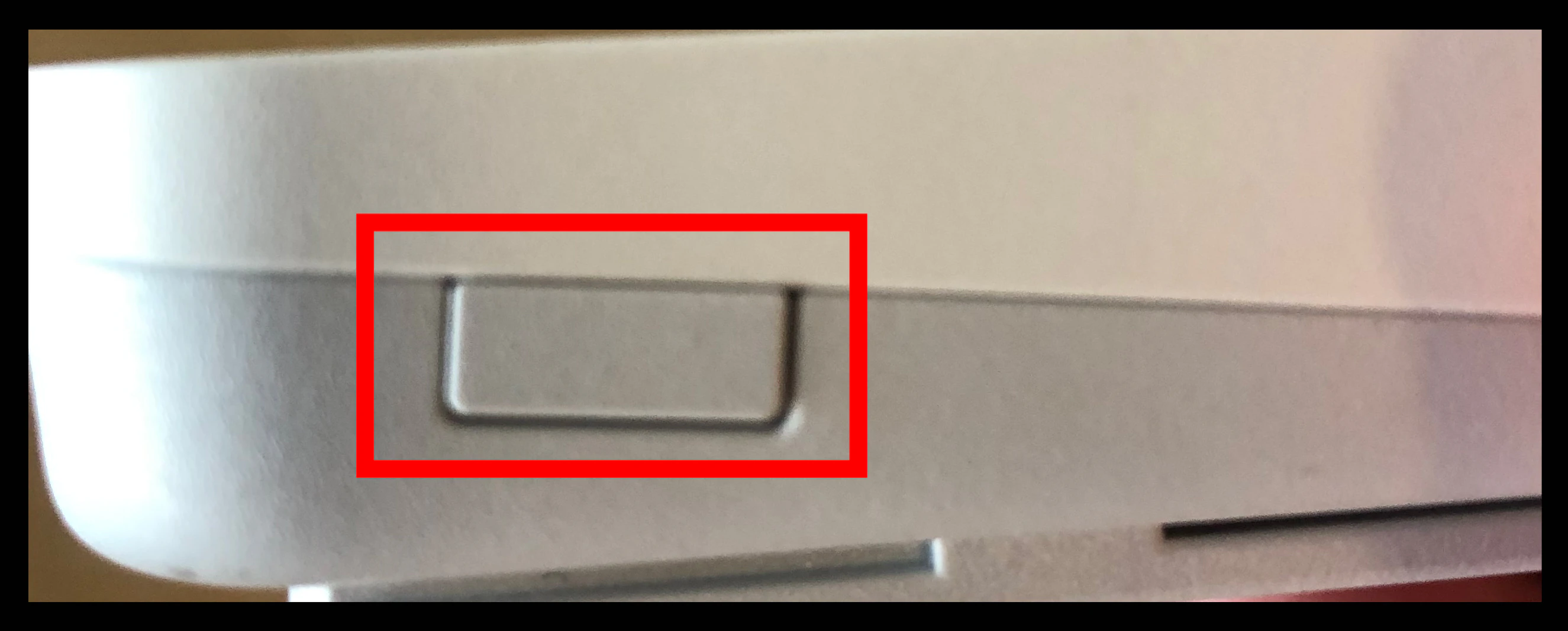
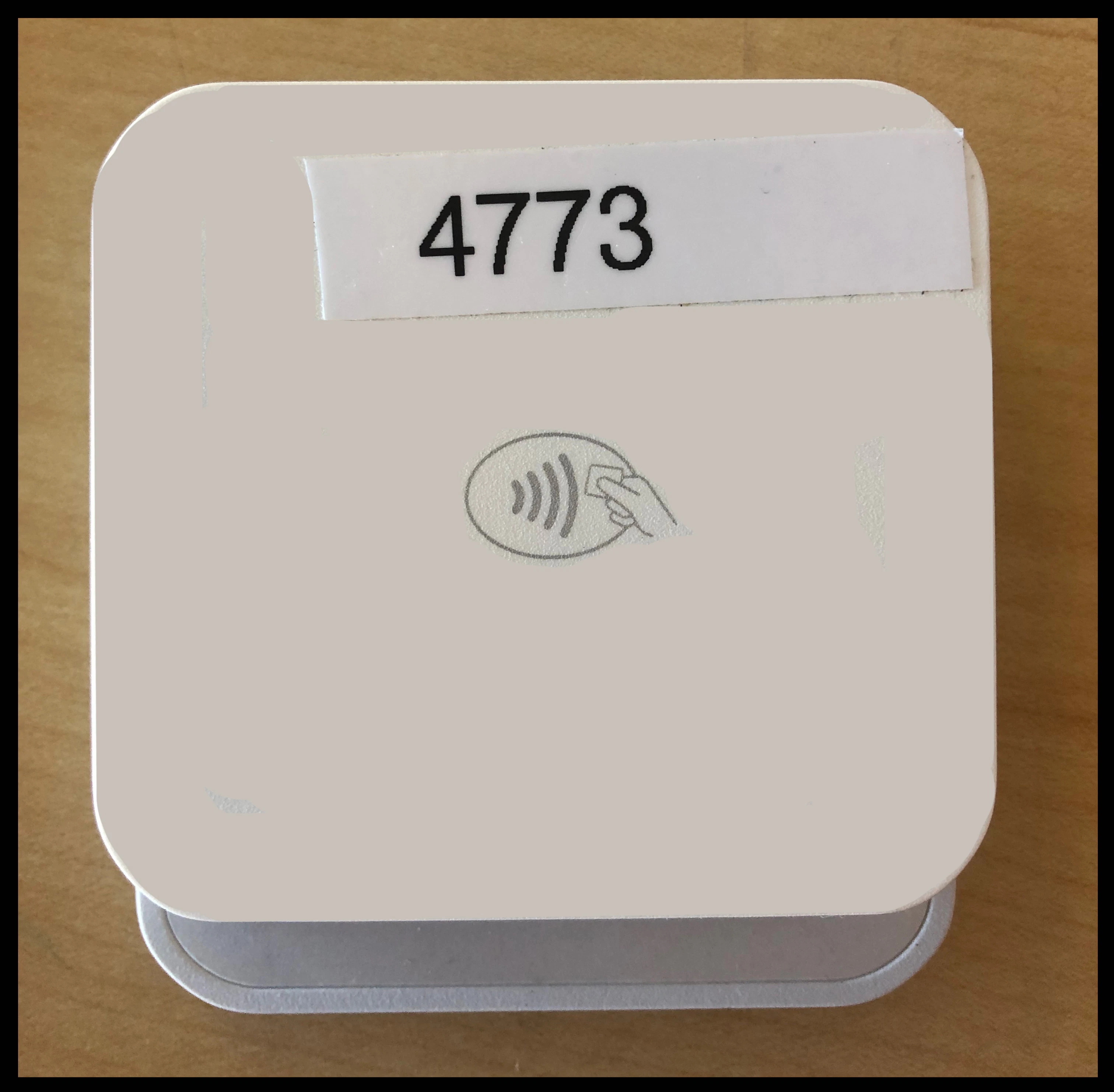
After clicking that make sure to turn on your card reader by clicking the button on the side of it. Once you do make sure to take note of the numbers that you see listed on the front card reader.
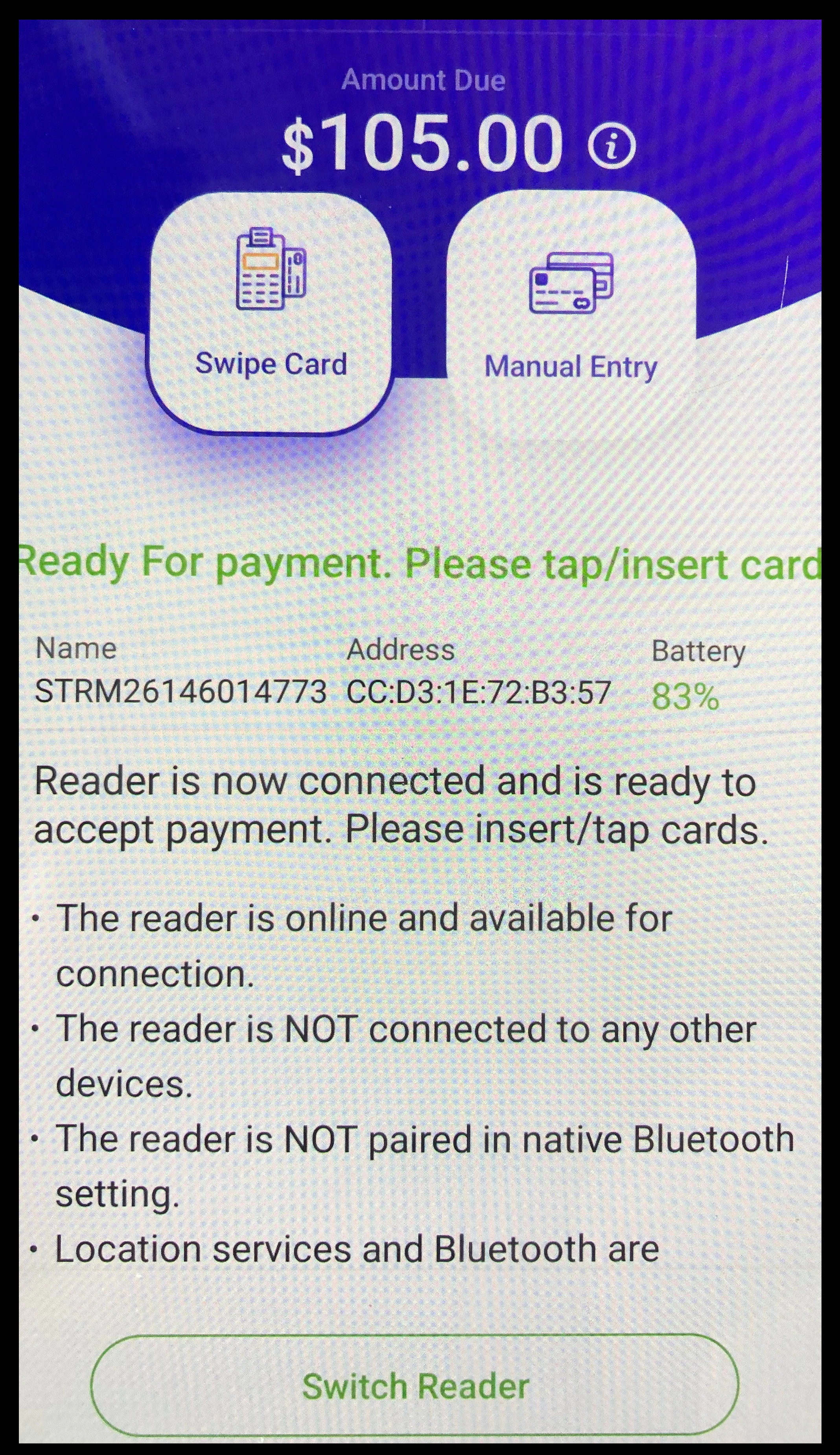
Next, head back to Event Staff App and you should see the below screen.
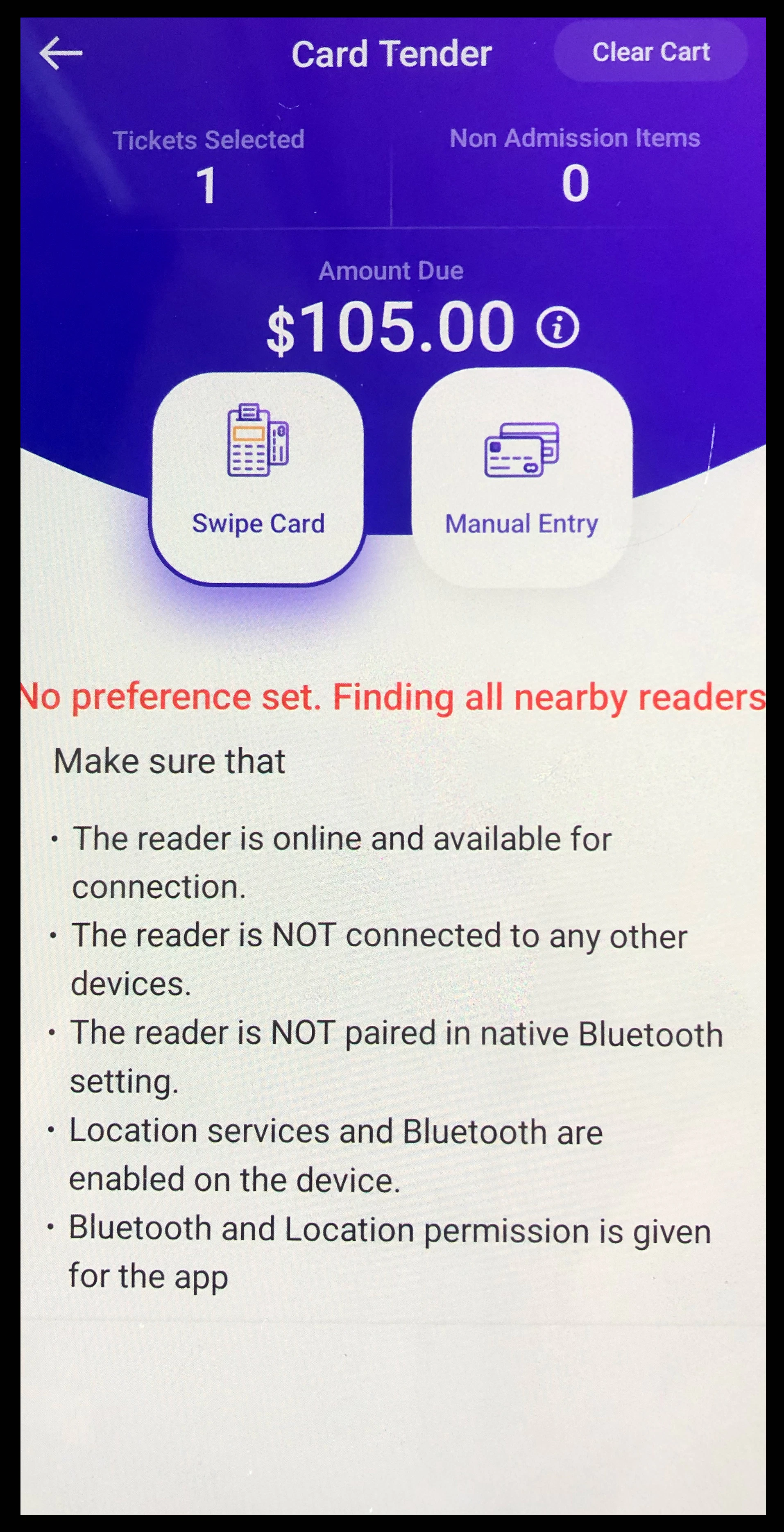
Give it a second and you should see the below screen.
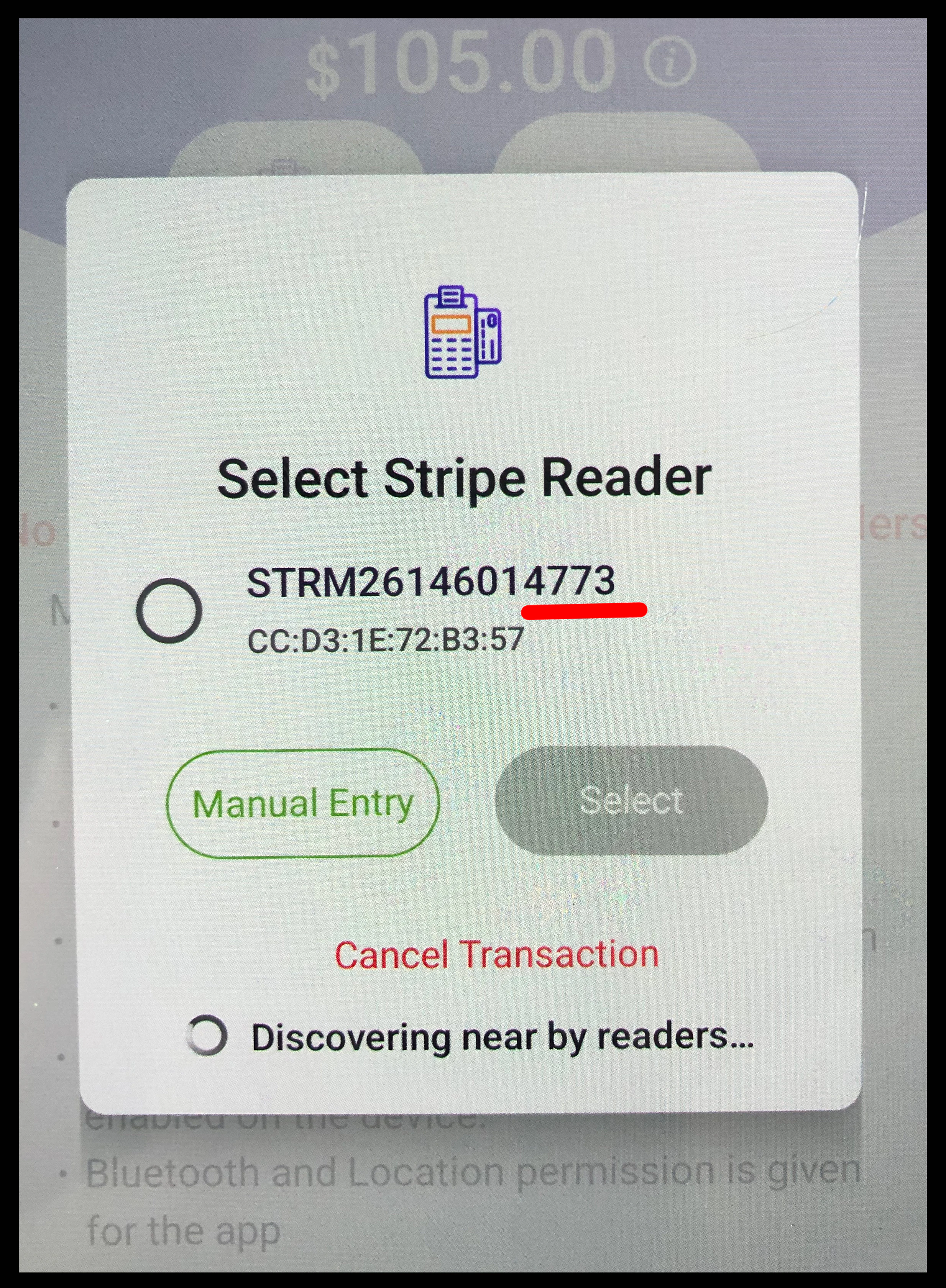
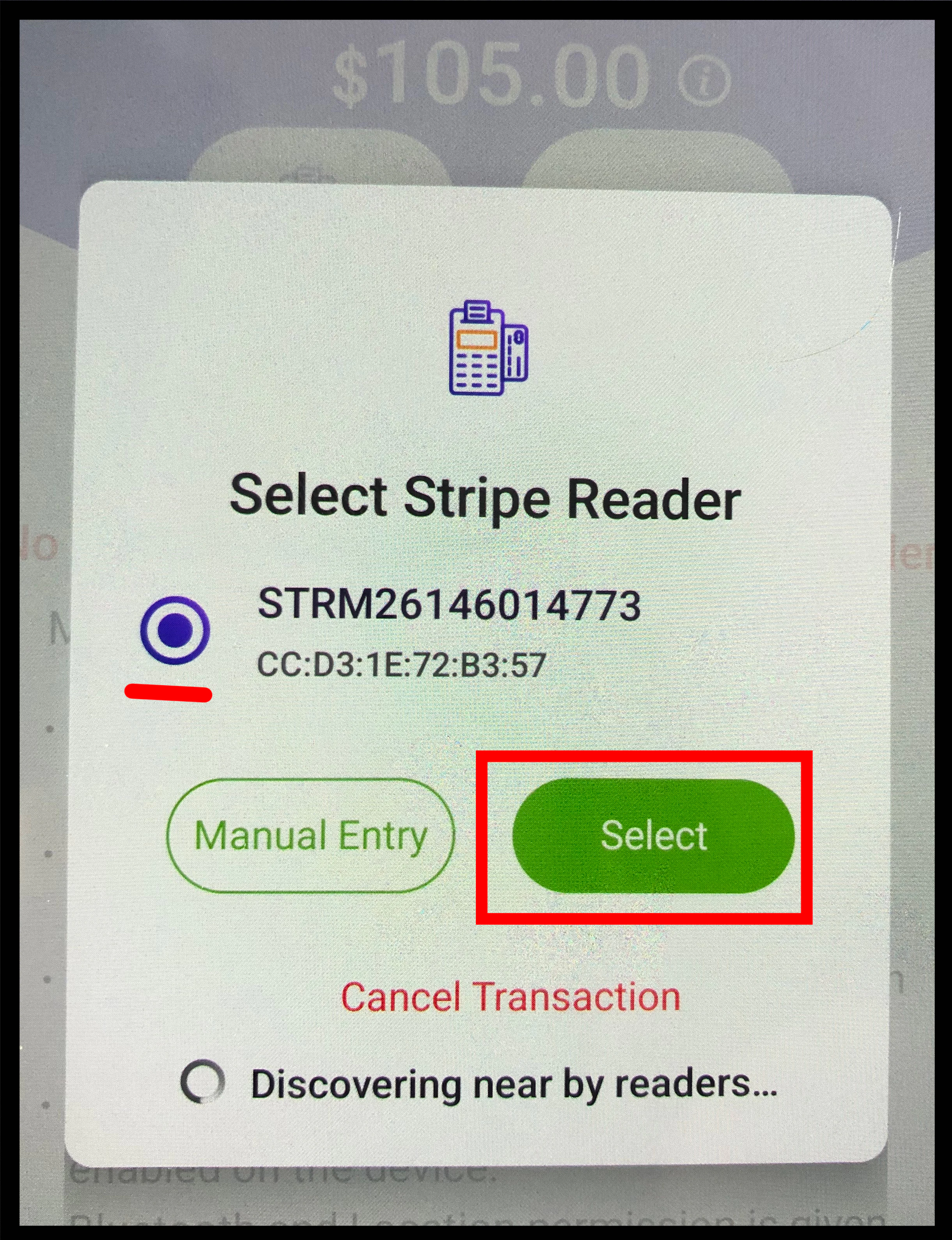
You will notice that the last four numbers are the same as the numbers on the card reader. Select that reader and then click on 'Select'
Next you will be promoted to 'Pair' to the device. Click on 'Pair'.
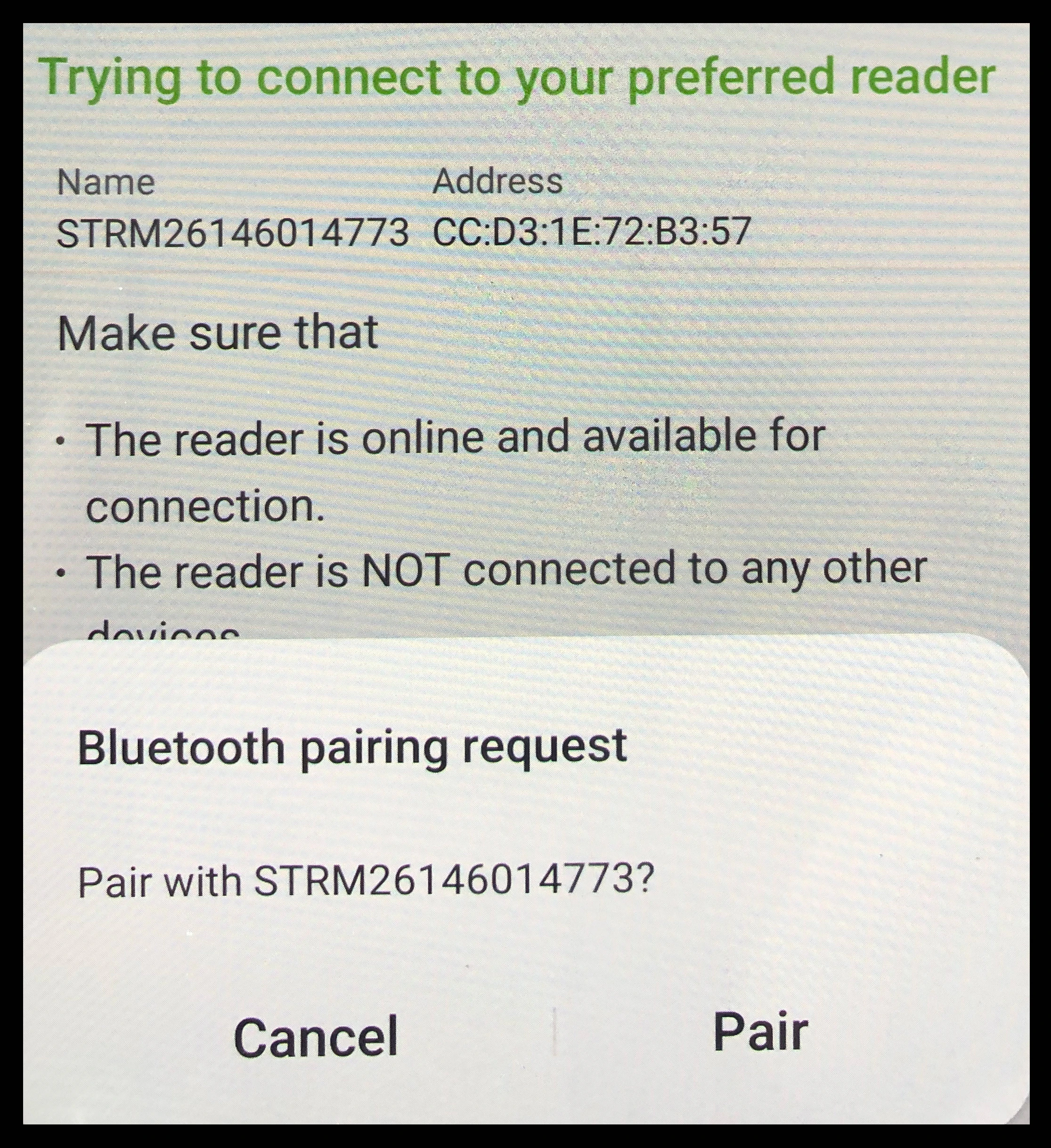
You should now be connected to the card reader.
Connecting The Mobile Printer
New Version:
Login to the event staff app (Using the same information that you login to your account with)
-Your Username, your password, and then your pin number which is found in the 'Account info' section of your HQ account.
-Click on the 'More' button.
-Click 'Select/Connect Printer
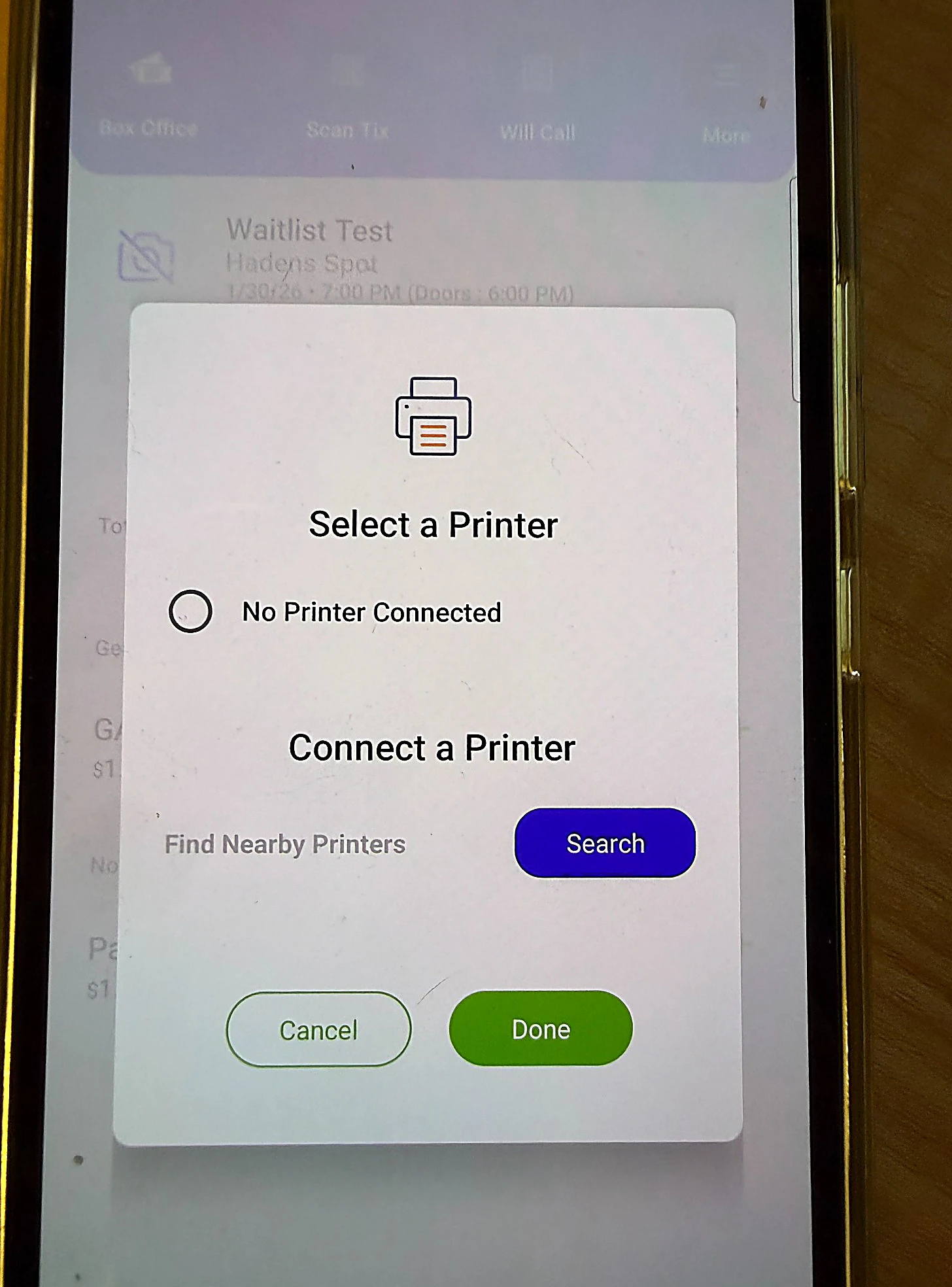
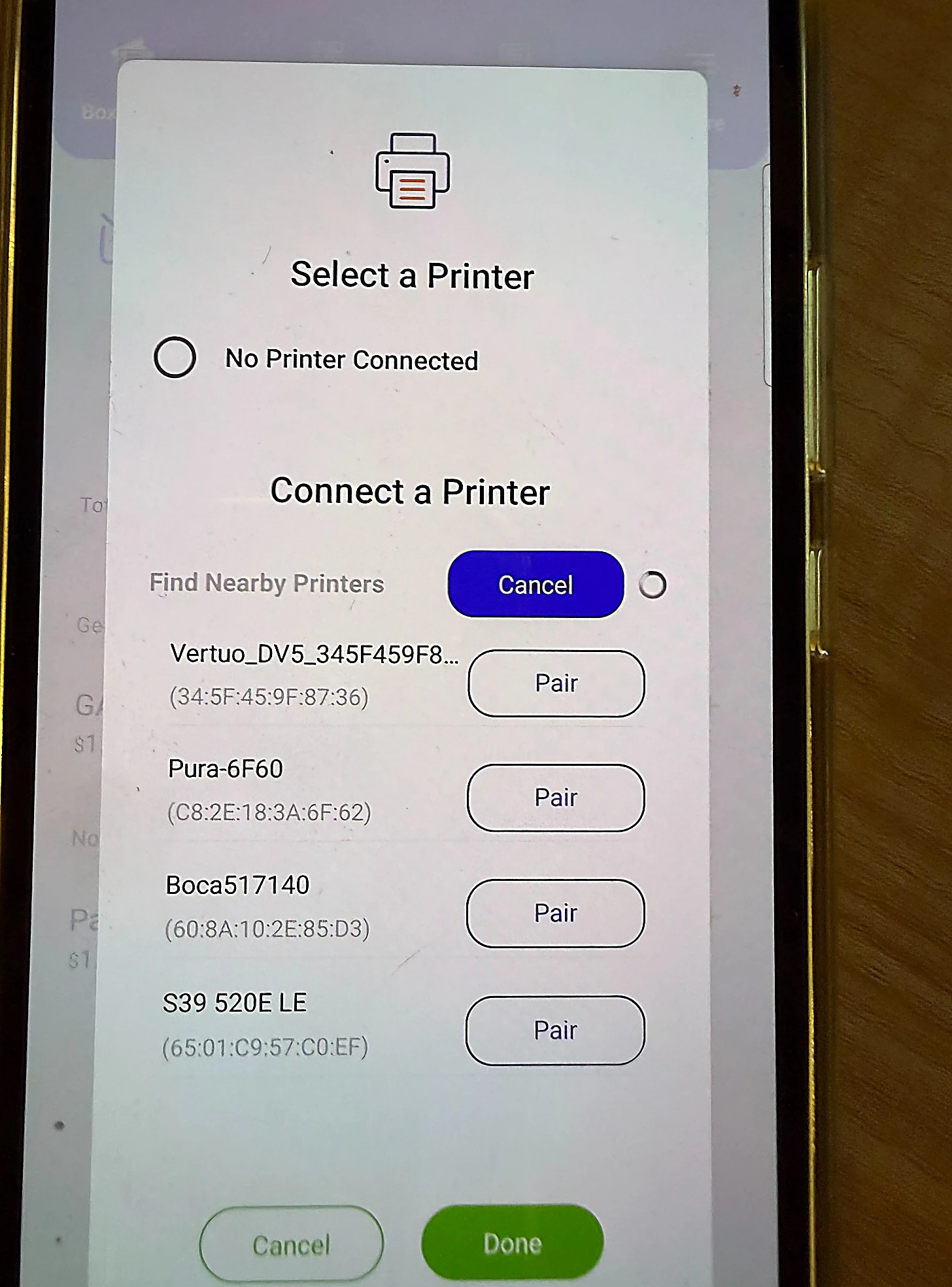
-Click on 'Search' and give it 15+ seconds to locate the printer you want to connect to. *Note you might need to scroll down depending on how many devices are around you.
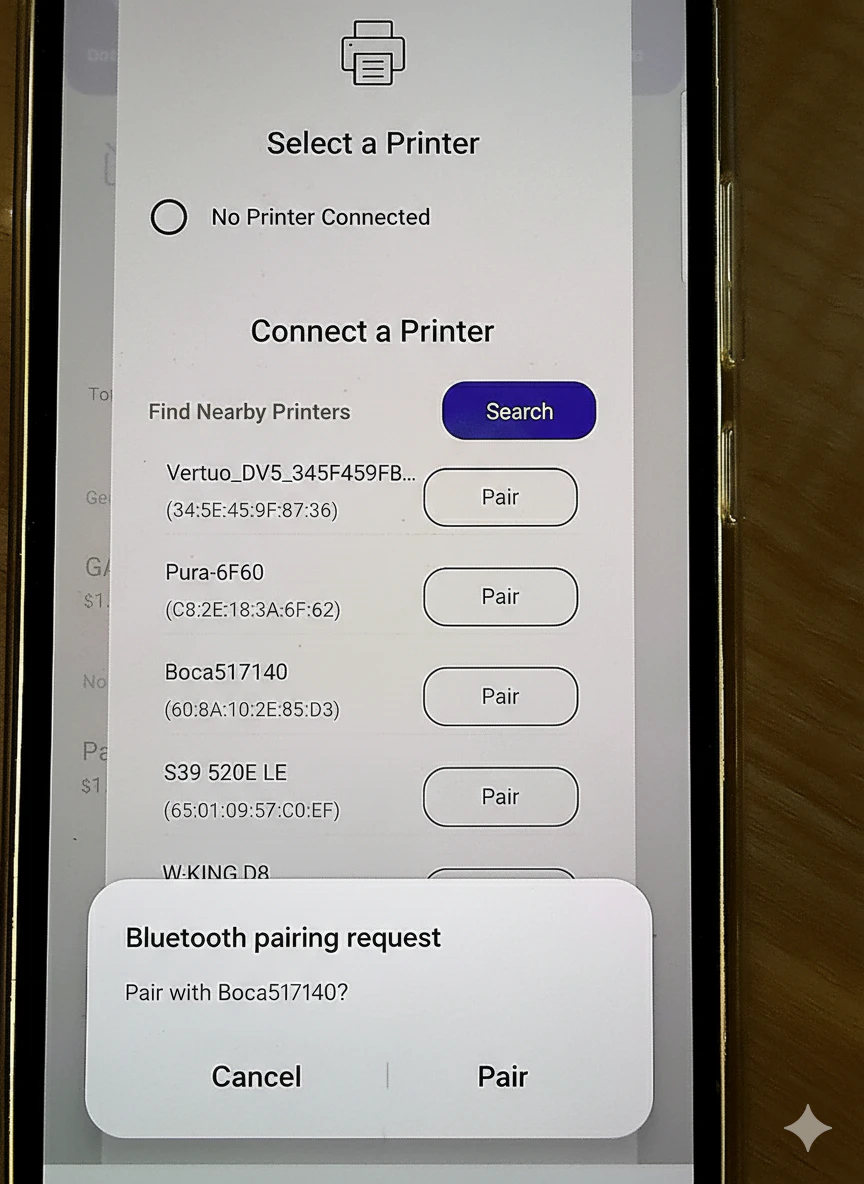
-Click 'Pair' next to the device you want to connect to and wait
-You should then see a 'Pair Request' notification that you will need to click 'Pair' on.
-After a little bit of time you should see a 'Connection Successful'. *Note if you are connecting to a boca printer it will not ask for a pin but if you are connecting to a mobile printer it will ask for a pin which will either be: 1234 OR 0000'
-Click 'OK' and you should see your device at the top with a dot filled in next to it. This means that the printer is connected and you are telling the app that it should be the default for printing tickets and receipts.
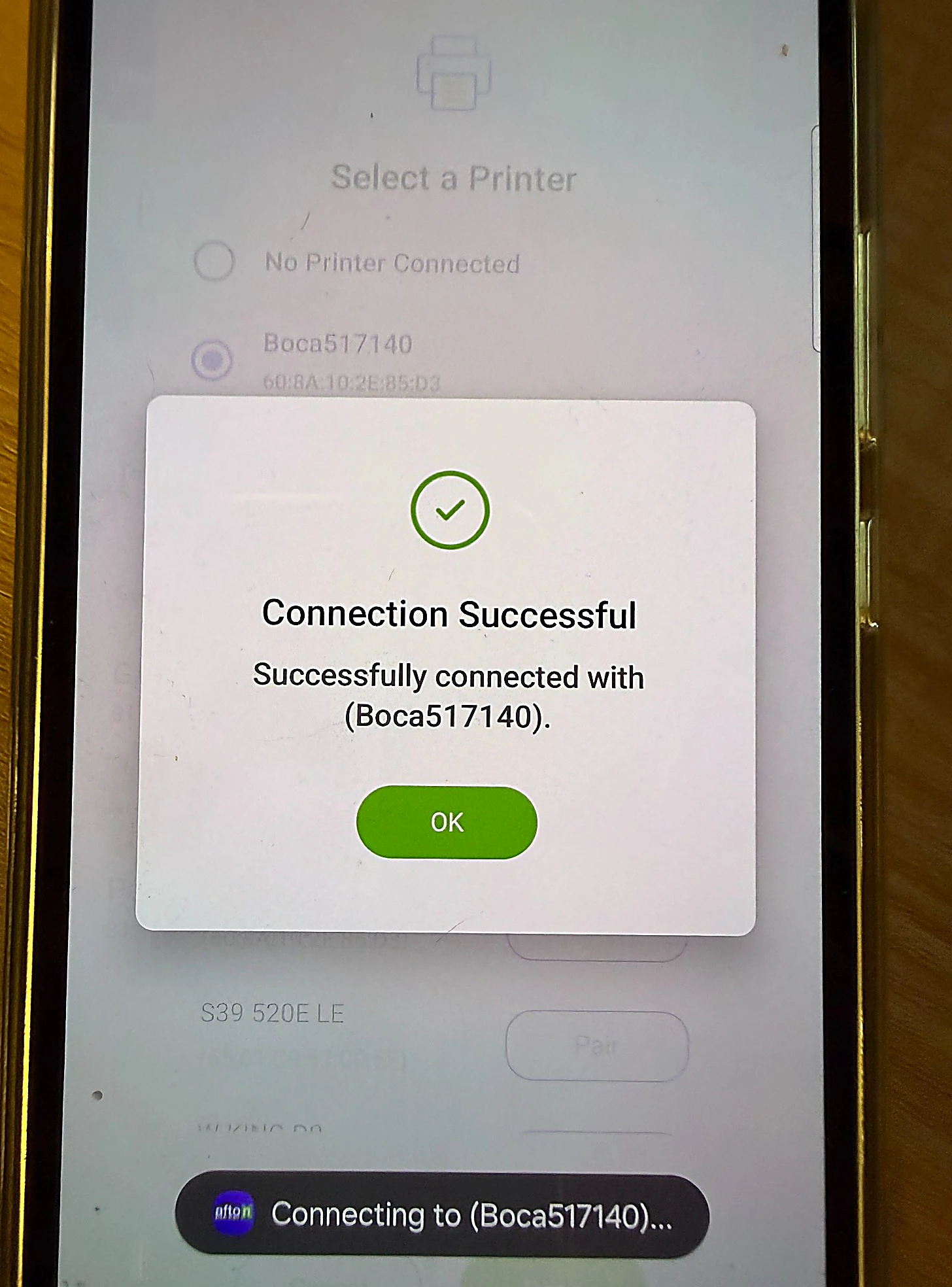
-Click 'Done' to go back to box office screen.
Old Version: (Still Works as an alternative)
Just like before will need to click the 'circular' button on the bottom middle of the phone.
You should see a circular button with an 'i' in the middle of it pop up on the middle right side of the screen. Click that button.
Click 'settings' and then on the next screen click 'Bluetooth'
Make sure that your printer is turned on by clicking and holding the power button on the front, bottom left.
This time you will look for the number of your printer which will be something like SM and then a number.
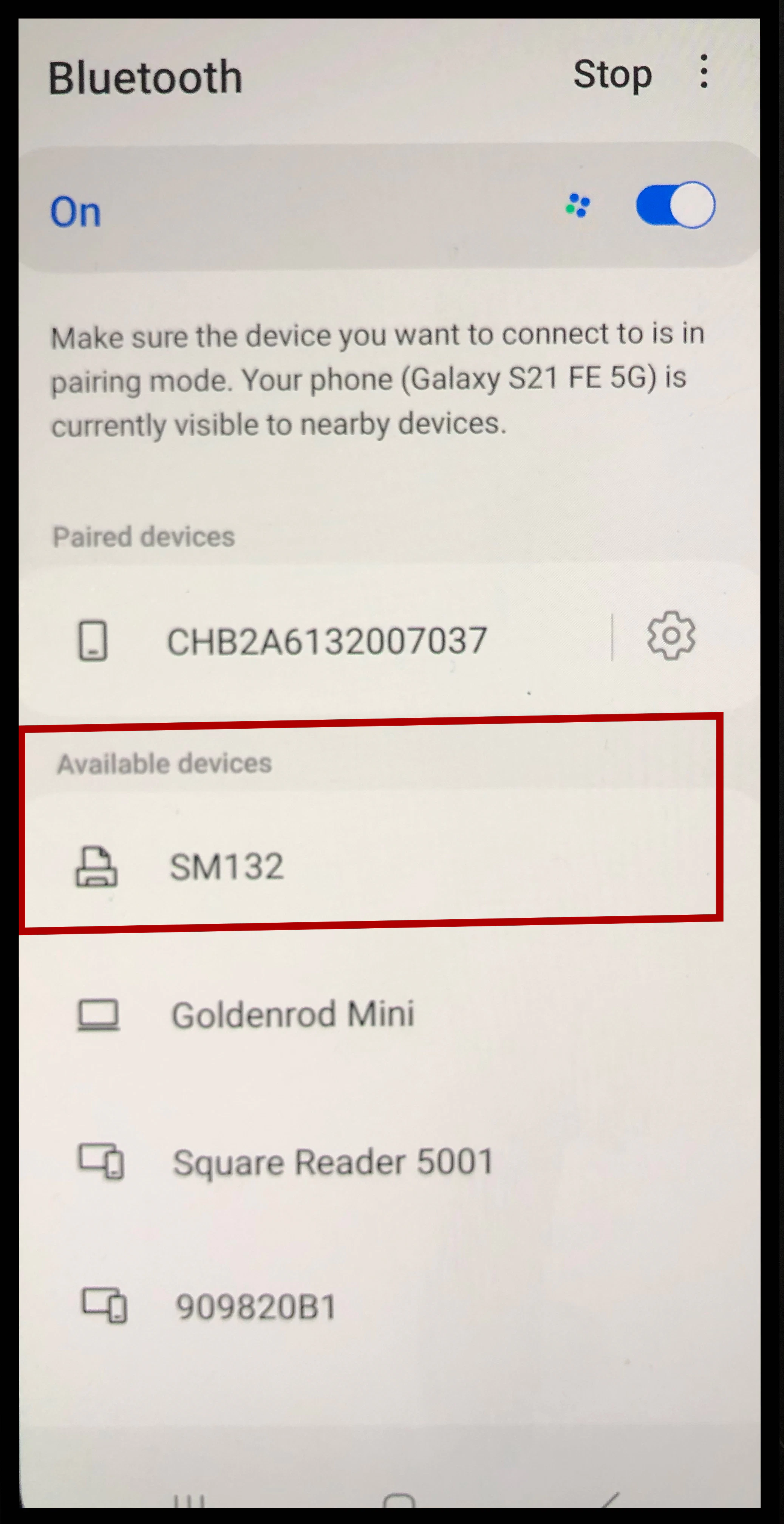
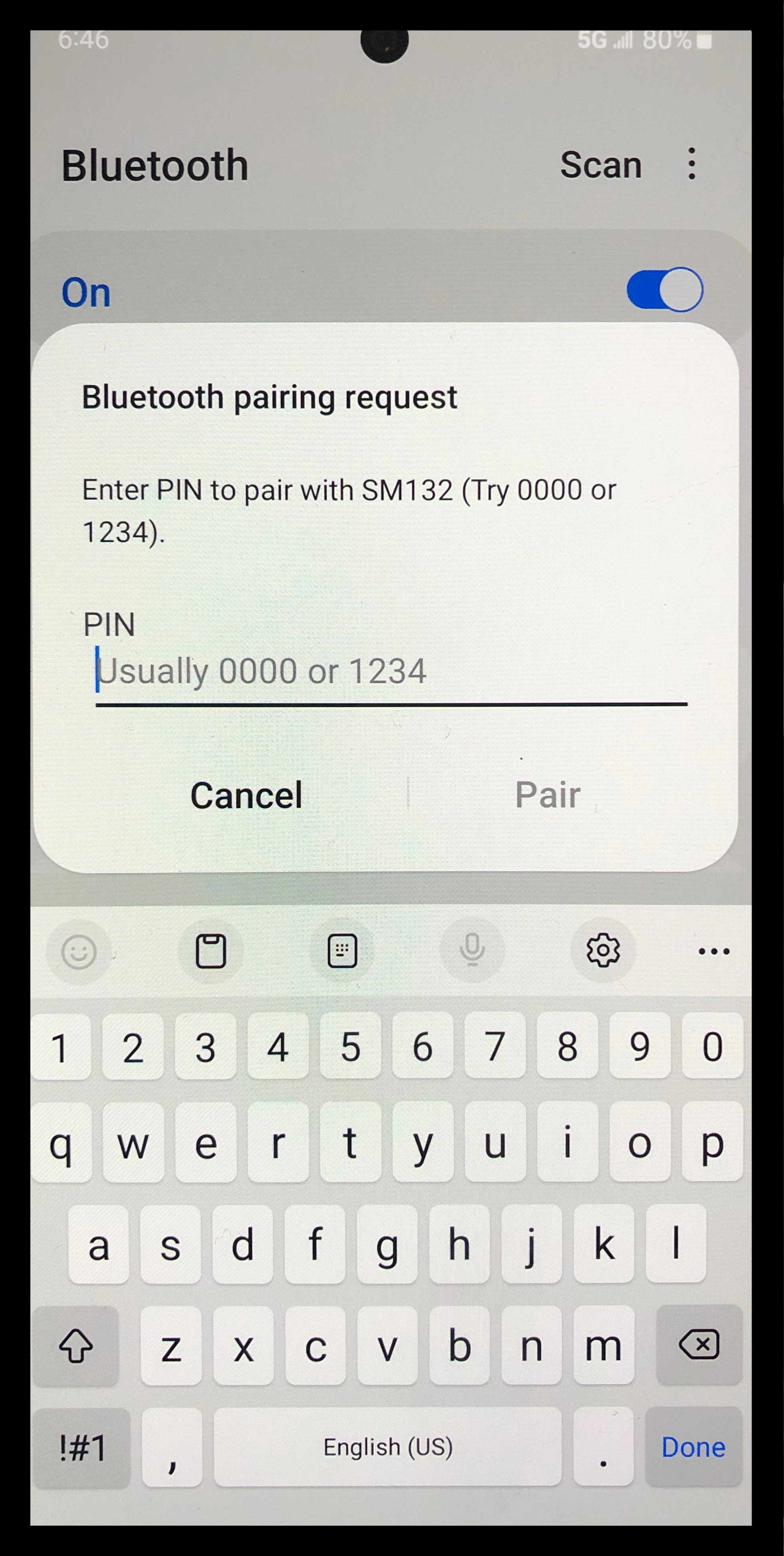
Click on that and then it will ask you to enter a pin number. It will suggest two pin numbers on the screen. Either 0000 or 1234. Try one and if it does not work then try the other.
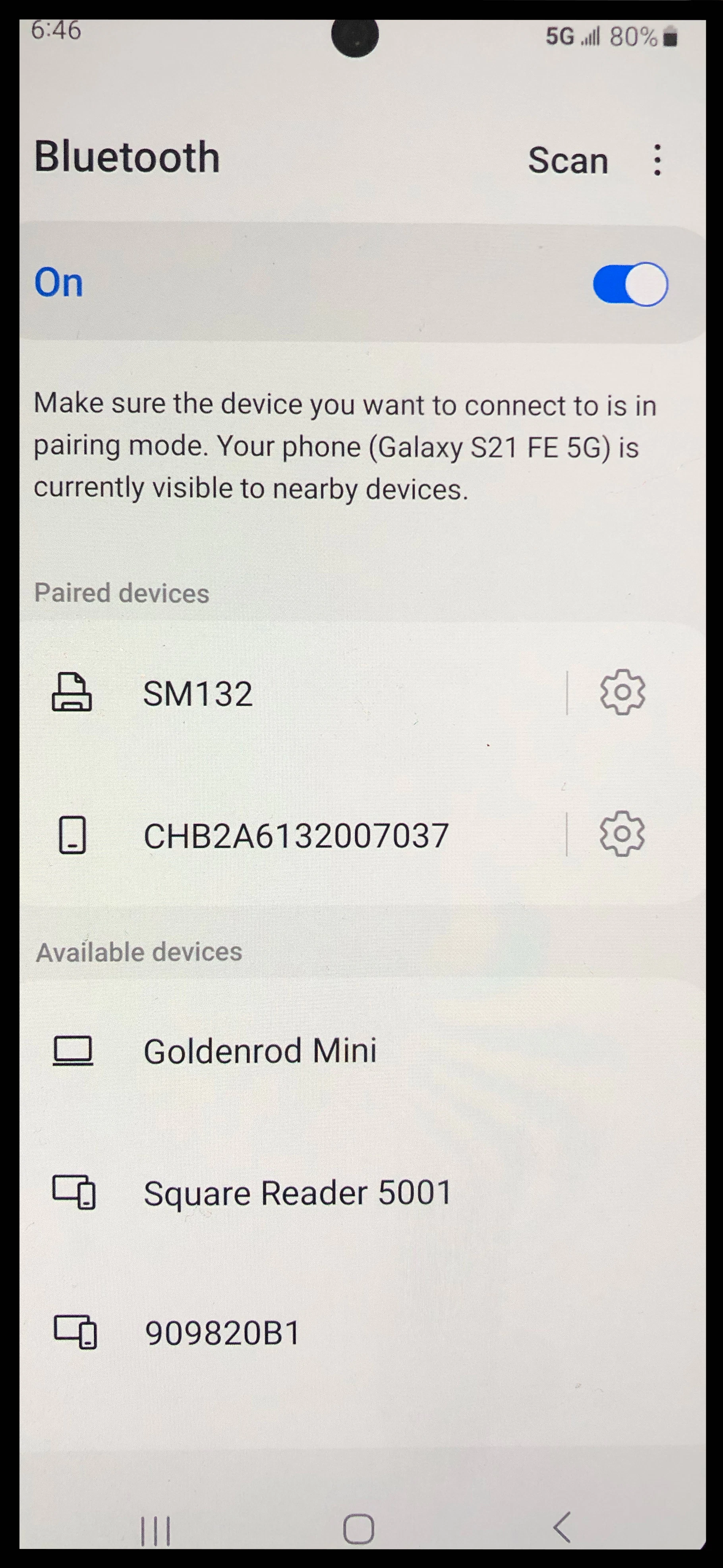
Once you are connected to the printer it will show up on your 'Paired devices' just like the card reader did.
Next you will need to click the circle button To head back to the event staff app and login as you did earlier in this tutorial.
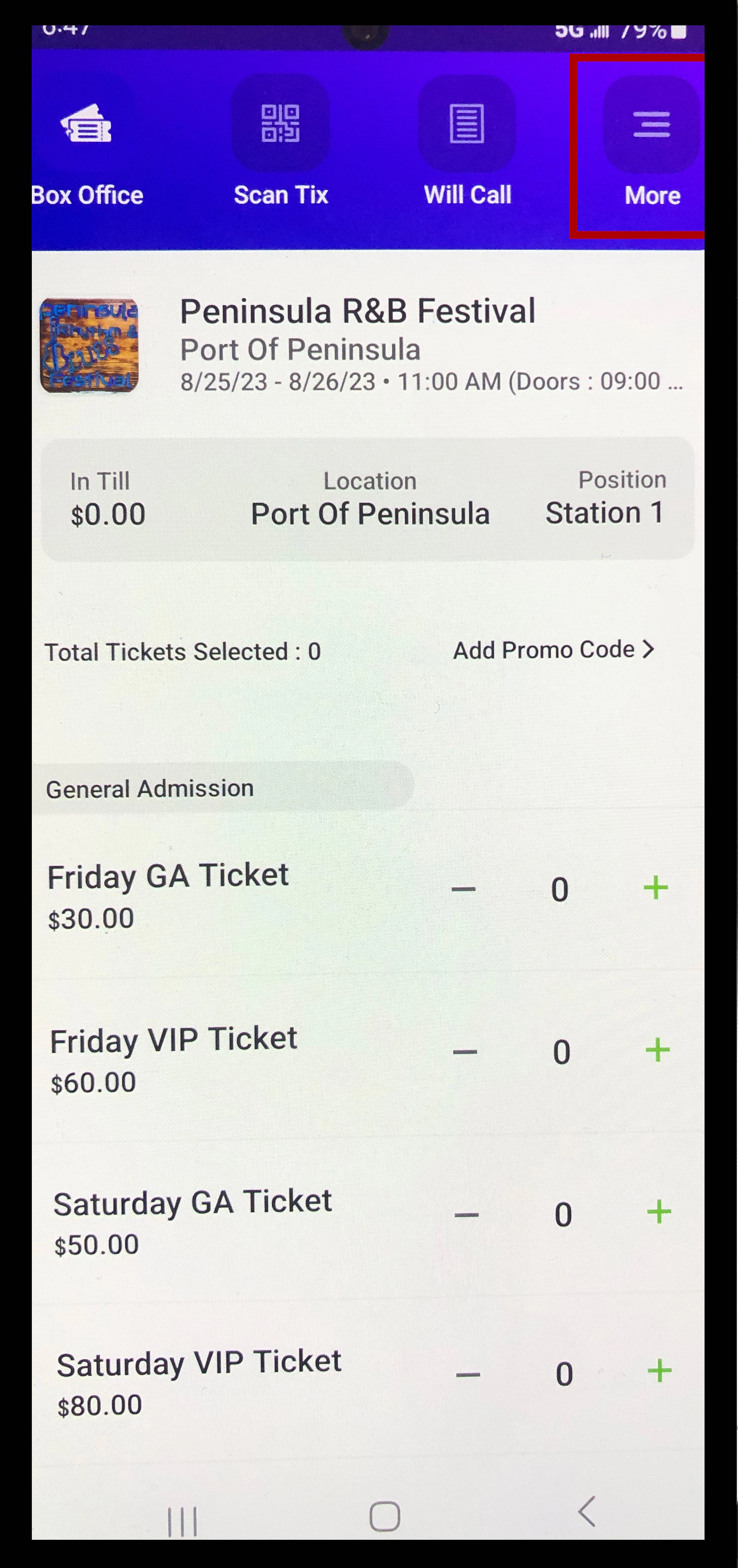
Once logged in click on the 'more' button.
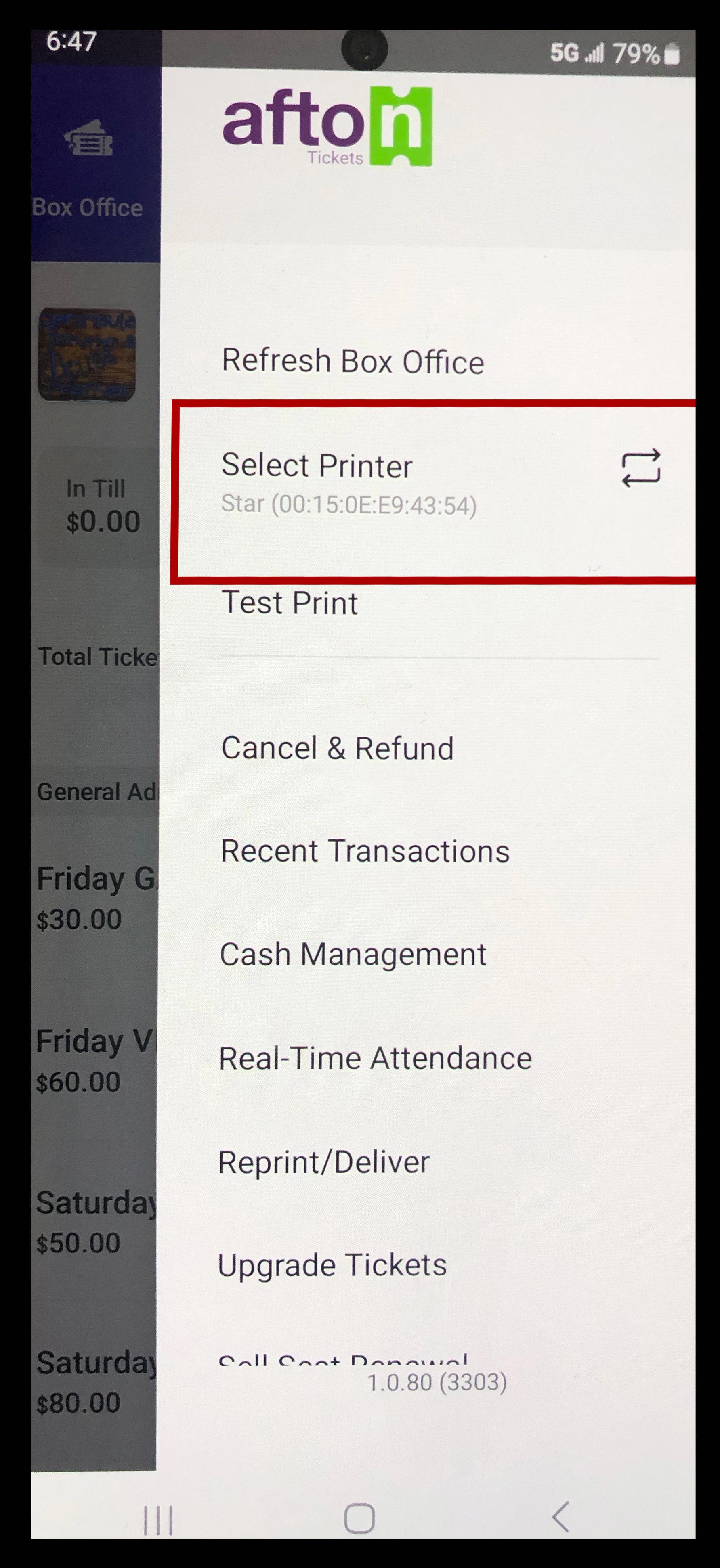
Click on 'Select Printer'.
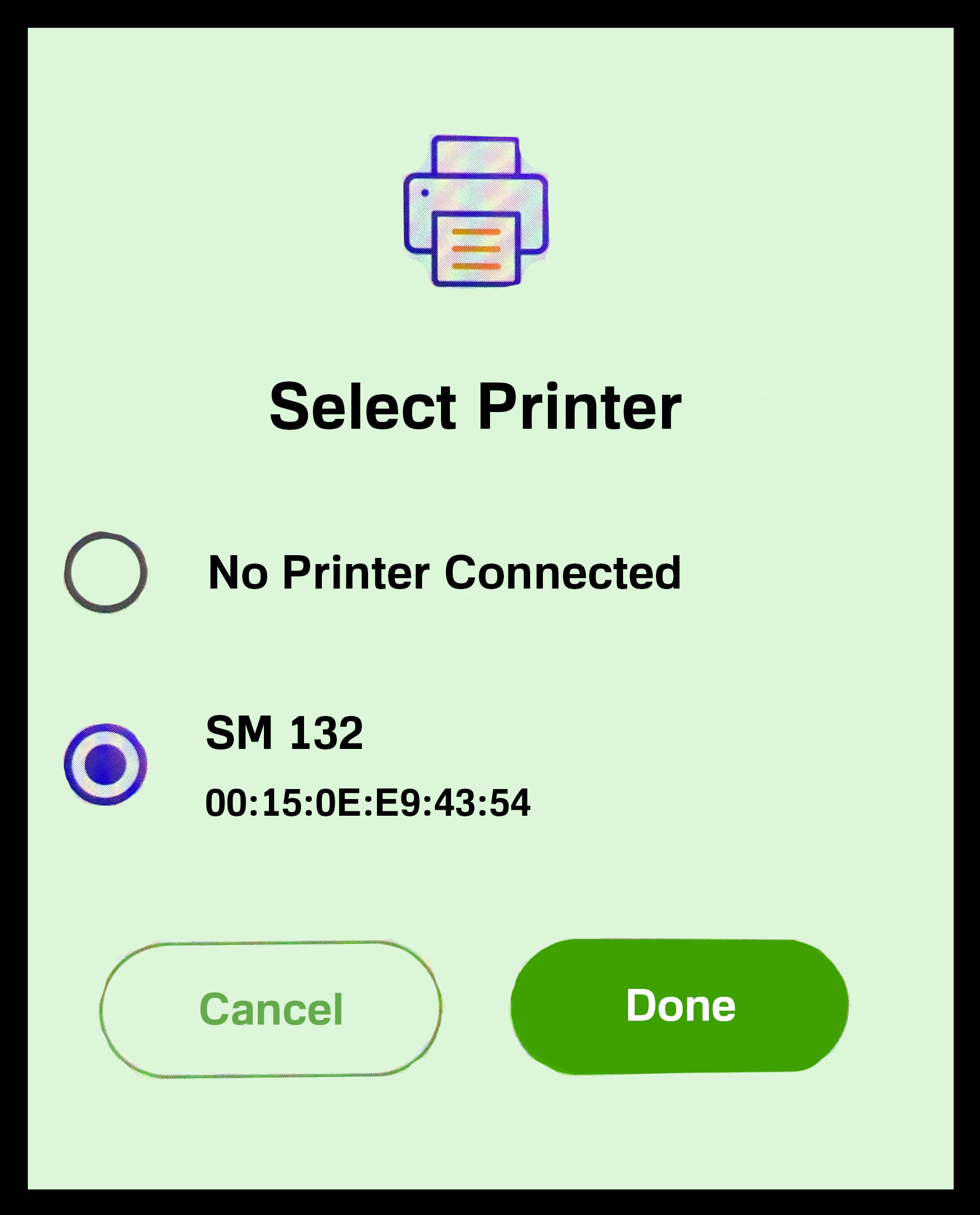
Select the printer you just connected to then click 'Continue' or 'Done'.
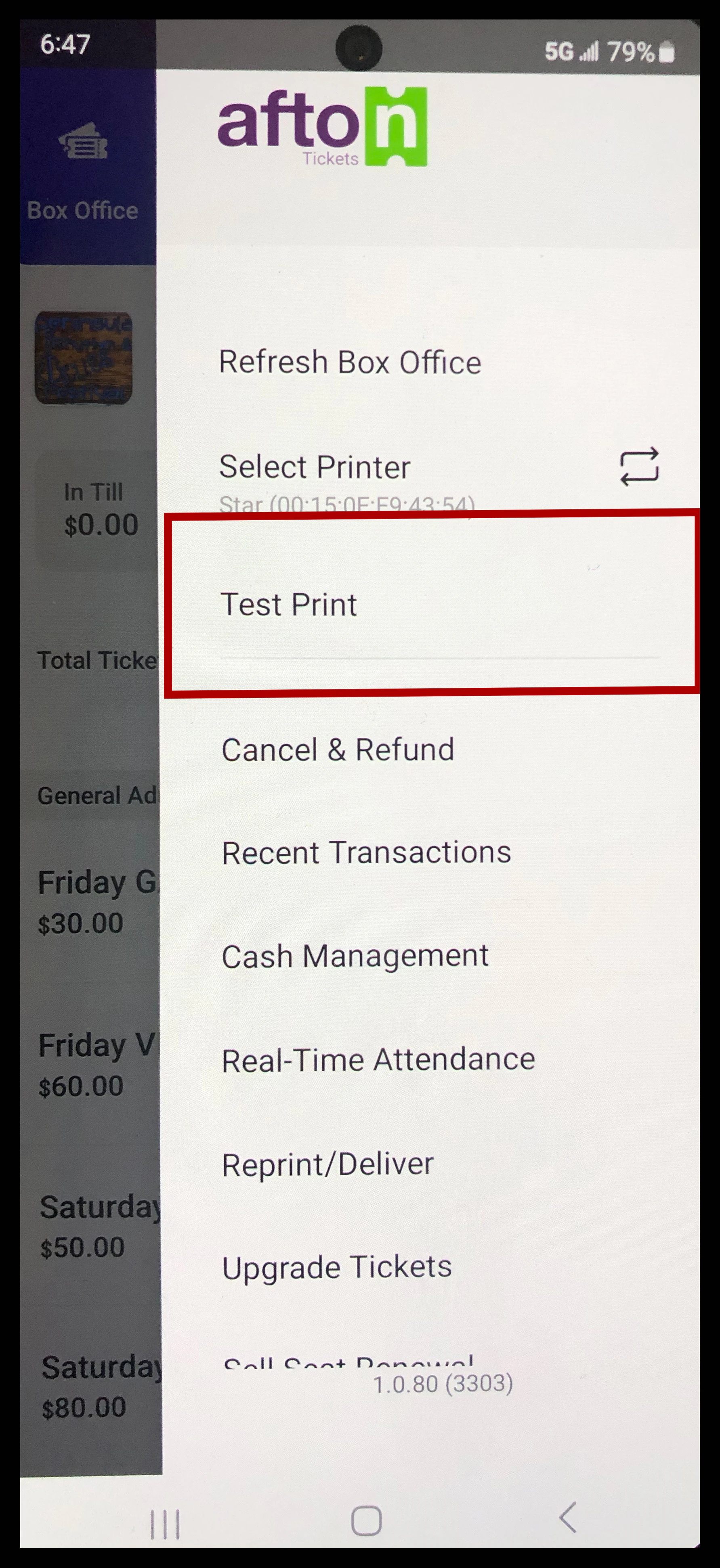
To test and make sure it worked just click the more button again and then click 'test print'.
Your printer is now connected.

If you have any questions or would like to setup an equipment call please reach out to your Account Manager.
